Group Share emaze Creations With a Custom Dashboard
Simplify content sharing with Groups and manage it all on your custom dashboard.
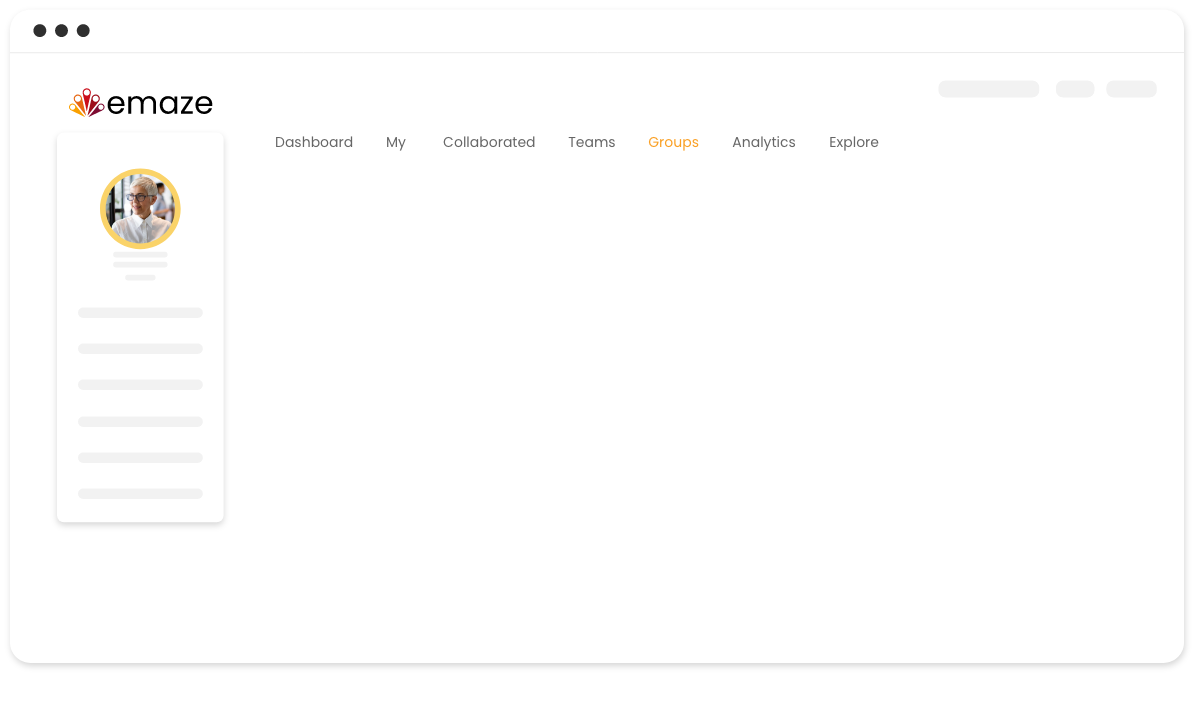
- A dedicated dashboard for each new Group, providing you with a centralized space for all Group-related content
- Content management: Upload your projects to your dashboard directly within the Group Manager
- Effortlessly switch between Groups by hovering over the dashboard menu item on the left side of the screen
- Link an emaze-created website directly to any of your dashboards
- Choose a unique group name, profile image, and cover photo
- Add external links to important resources, websites, or social media profiles that fit the Group’s purpose
- Provide detailed Group information, including a description and guidelines, or any other relevant information to help members understand the focus
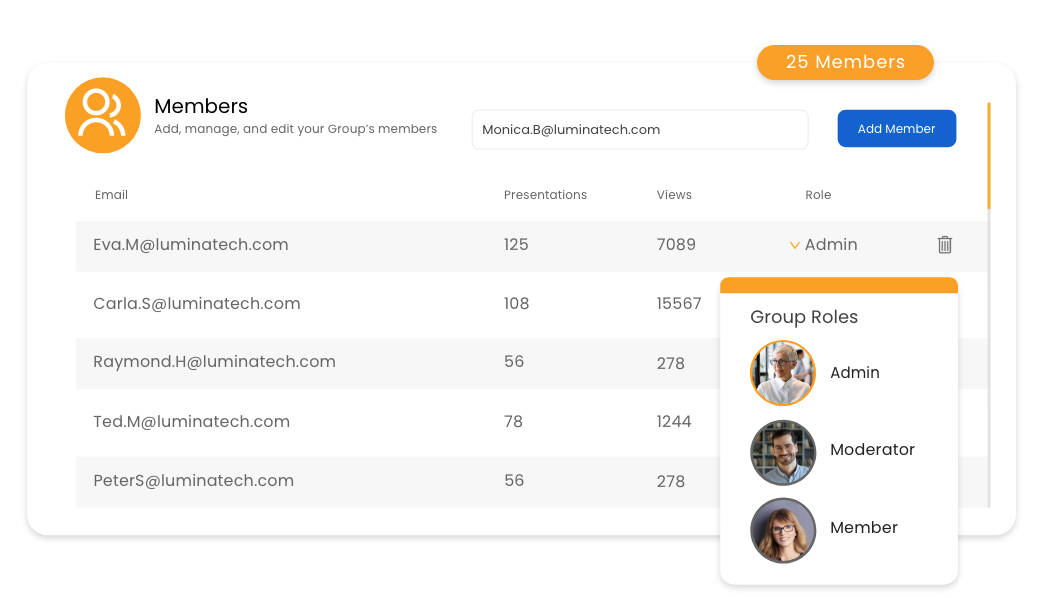
- Assign different roles including admin and moderator
- Grant varying levels of permissions and access within the Group and dashboard based on assigned roles
- Maintain privacy and security by only allowing authorized members to view, contribute, and modify specific information
*Groups is a premium feature that is available with select plans. Visit our pricing page to learn more*
How It Works
How to create and share content with Groups
-
Step 1
Hover over your account name and click on “Group Manager”
-
Step 2
Hit “Create New Group” and fill in the necessary details, including the group name, admin name, and permissions
-
Step 3
Go to the ”Members” tab, add members, and assign specific group roles to each
-
Step 4
Share content by selecting the files that you want from the “Content” tab and clicking “Save”
Frequently
asked questions
Answers to the most frequently asked questions.
You can share various types of content within an emaze Group, whether it’s engaging presentations, interactive websites, informative blogs, or charming eCards! Moreover, it’s not just limited to individual items, you can conveniently share entire folders that you’ve already curated. All the content that you share will be readily accessible and neatly organized within your custom dashboard.
With many of our plans, you have the flexibility to create an unlimited number of both Open and Closed Groups. Open Groups can be joined freely, while Closed Groups require an emaze account to access them. To find out more about the specific features and limitations of each plan, please visit our pricing page for detailed information.
It’s easy! To create a new dashboard, simply create a Group by filling in the required details, adding members, and then sharing the relevant content to them. Once you’ve completed these steps, you can access your newly created dashboard by hovering over the “Dashboard” menu option (located on the left), and selecting the one that you wish to explore.
The possibilities are endless! Along with selecting a unique group name, you have the option to personalize the profile image, cover image, group information, and more. These customization features allow you to truly reflect your preferences and desired aesthetic. Let your imagination run wild!